
192.168.1.254 Login: Access Your Router Admin Panel
Typing 192.168.1.254 into your browser opens the login page for many home and business routers. From there, you can change your Wi-Fi password, update your wireless network name, configure security settings, manage connected devices, and adjust other network options.
Whether you’re setting up a new router, replacing an old Wi-Fi password, troubleshooting connection problems, or simply trying to sign in to the administrator dashboard, this guide explains every step in clear, practical language.
Quick Access to 192.168.1.254 Login
If you simply want to log in, click on the button below or follow the steps.
- Connect your computer, phone or tablet to your router using Wi-Fi or an Ethernet cable.
- Open any modern web browser.
- Type http://192.168.1.254 into the browser’s address bar.
- Press Enter.
- Enter your administrator username and password.
- Select Login or Sign In.
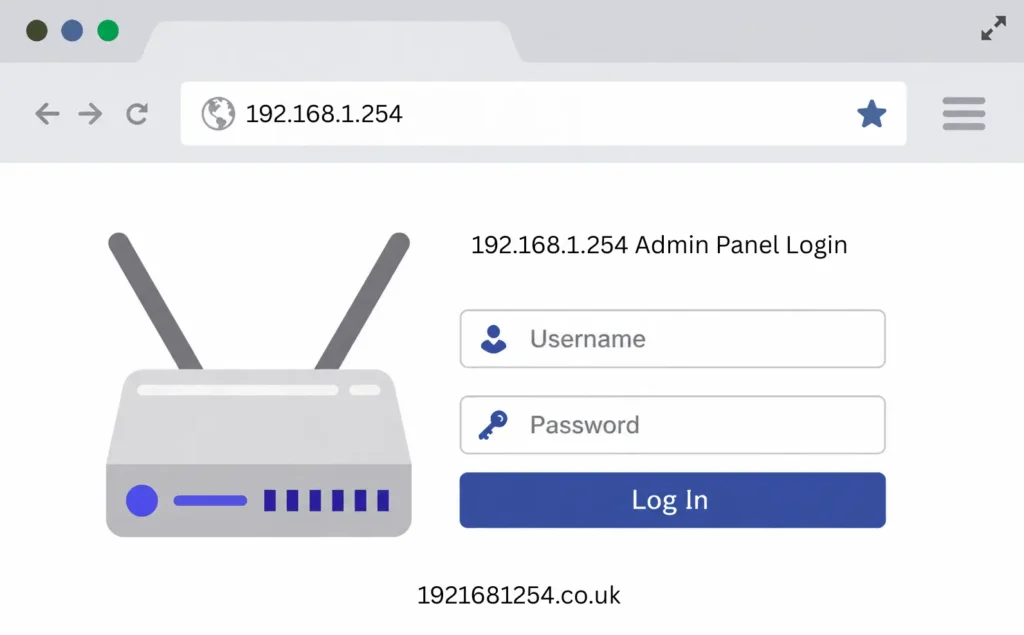
Once you’re signed in, you’ll be able to access your router settings and manage your local network.
Important: Enter the address in your browser’s address bar, not into a search engine. Searching for 1921681254 or 192.168.1.254 login in Google will display search results rather than your router’s login page.
What Is 192.168.1.254?
The address 192.168.1.254 is a private IPv4 address commonly assigned to routers as their default gateway. Unlike public IP addresses used on the internet, private IP addresses are reserved for local networks and cannot be accessed directly from outside your home or office.
If 192.168.1.254 doesn’t open your router’s login page, your router may simply use a different default gateway. Below or later in the guide, you’ll learn how to find the correct router IP address on Windows, macOS, Android, iPhone, and Linux.
192.168.1.254 Router Login at a Glance
|
Router Login Details |
Information |
|---|---|
|
Default IP Address |
192.168.1.254 |
|
Login URL |
http://192.168.1.254 |
|
IP Address Type |
Private IPv4 Address |
|
Purpose |
Router Admin Login & Network Management |
|
Common Router Brands |
TP-Link, Plusnet, BT Business Hub, 2Wire, Pace, Billion, Netgear, Motorola, Thomson |
|
Default Username |
admin (varies by manufacturer) |
|
Default Password |
admin, password, or printed on the router label |
|
Works On |
Windows, macOS, Linux, Android, iPhone & iPad |
|
Connection Required |
Connected to the router via Wi-Fi or Ethernet |
|
Main Functions |
Change Wi-Fi Password, Rename Wi-Fi, Firmware Updates, Security Settings, Connected Devices, Guest Network |
How to Log In to 192.168.1.254
Logging in to 192.168.1.254 only takes a minute, provided your device is connected to the router. You can use a Windows PC, Mac, Android phone, iPhone, or tablet, as long as it’s connected to the same local network. Follow the steps.
Step 1: Connect to Your Router
Before opening the login page, connect your device to the router. You can connect by:
- Wi-Fi
- Ethernet cable (recommended for changing important settings)
If your device is using mobile data or another Wi-Fi network, 192.168.1.254 won’t open because the router is only accessible from within its own local network.
Open Your Web Browser
Go to any modern browser, such as:
- Google Chrome
- Microsoft Edge
- Mozilla Firefox
- Safari
- Opera
- Brave
There’s no need to install any software or application.
Type the Address Correctly
Click the browser address bar and enter http://192.168.1.254. Then press Enter.
Avoid typing the address into Google, Bing, or another search engine. If you search for 1921681254 instead of entering it into the address bar, you’ll simply see search results rather than your router’s login page.
Many failed login attempts happen because users accidentally
- Search instead of navigating directly.
- Add spaces to the address.
- Replace the number 1 with the letter l.
- Miss one of the dots.
- Use the wrong IP address for their router.
Enter the Administrator Credentials
If the address is correct, your router’s sign-in page will appear. You will be asked for:
- Username
- Password
Enter the administrator credentials assigned to your router.
Depending on the manufacturer, the login screen may display the following:
- Administrator Login
- Router Login
- Admin Panel
- Router Settings
- Gateway Login
- Web Management Interface
After signing in by clicking on login, the router configuration dashboard will appear.
Default Username and Password for 192.168.1.254
Many routers use 192.168.1.254 as the default gateway, but the login details vary by manufacturer and internet service provider. If they don’t work, check the label on your router or the documentation supplied by your ISP.
|
Router Brand |
Default Username |
Default Password |
|---|---|---|
|
TP-Link |
admin |
admin |
|
Netgear |
admin |
password |
|
Linksys |
admin |
admin |
|
2Wire |
admin |
Printed on router |
|
Pace |
admin |
Printed on router |
|
Motorola |
admin |
motorola or printed label |
|
Billion |
admin |
admin |
|
Thomson |
admin |
admin |
|
Some ISP Routers |
Printed on label |
Printed on label |
Security Tip: Many newer routers no longer use generic default passwords. Instead, they generate a unique administrator password that is printed on a label attached to the router. If you have not changed your login details, check the underside or back of the device before attempting a factory reset.
Can’t Open 192.168.1.254?
If the login page does not load, do not assume the router is faulty. In most cases, the issue is caused by a simple mistake. Check the following before trying anything more advanced:
- Make sure you are connected to the correct Wi-Fi network.
- Confirm that you are not using mobile data.
- Enter http://192.168.1.254 in the browser’s address bar rather than a search engine.
- Check that you have typed the address correctly.
- Try another web browser.
- Restart the router and your device.
- Connect with an Ethernet cable if possible.
If the page still does not open, your router may use a different default gateway, such as 192.168.1.1, 192.168.0.1, or 10.0.0.1.
How to Find Your Router IP Address
If 192.168.1.254 doesn’t work, finding your router’s actual gateway address only takes a few moments.
On Windows
- Press Windows + R.
- Type cmd and press Enter.
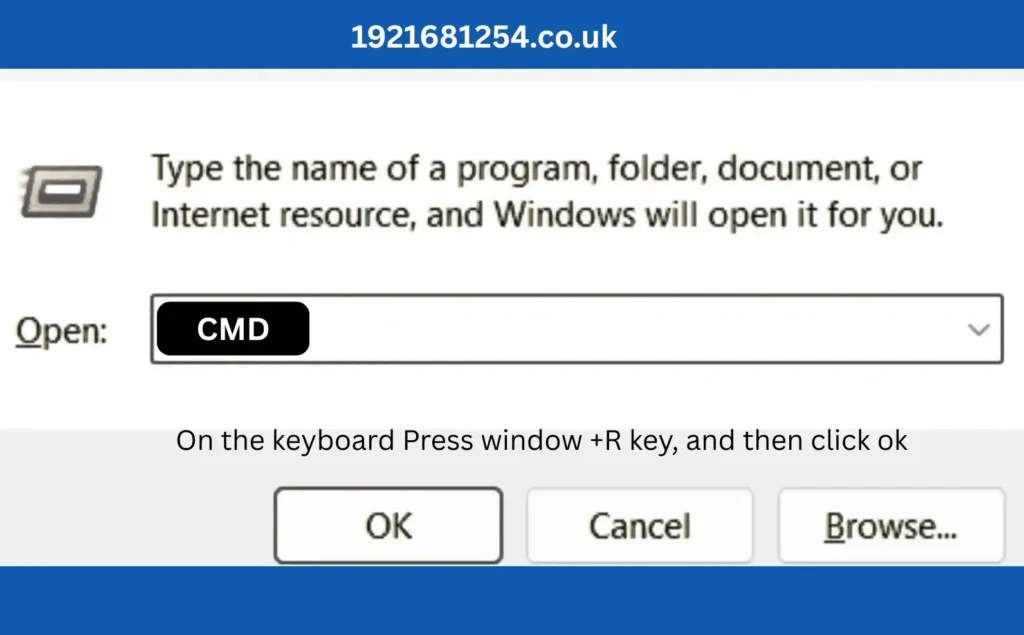
- Enter the following command: ipconfig
- Press Enter.
- Find the default gateway under your active network connection.
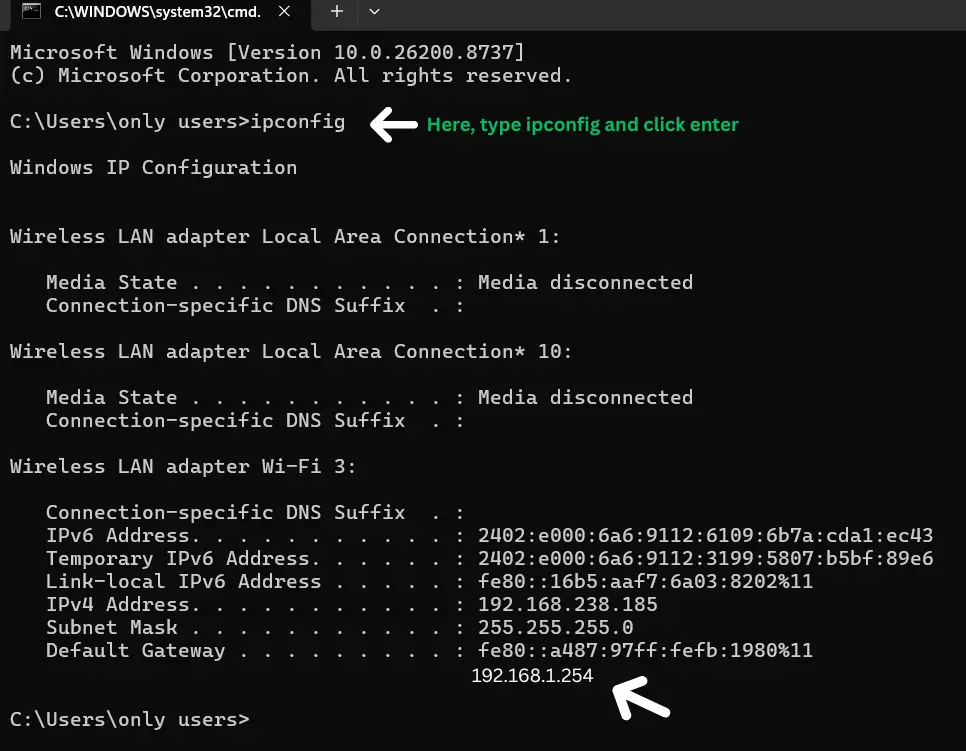
The number displayed next to Default Gateway is your router’s login address.
On macOS
- Open System Settings.
- Select Network.
- Choose your active Wi-Fi or Ethernet connection.
- Click Details.
- Open TCP/IP.
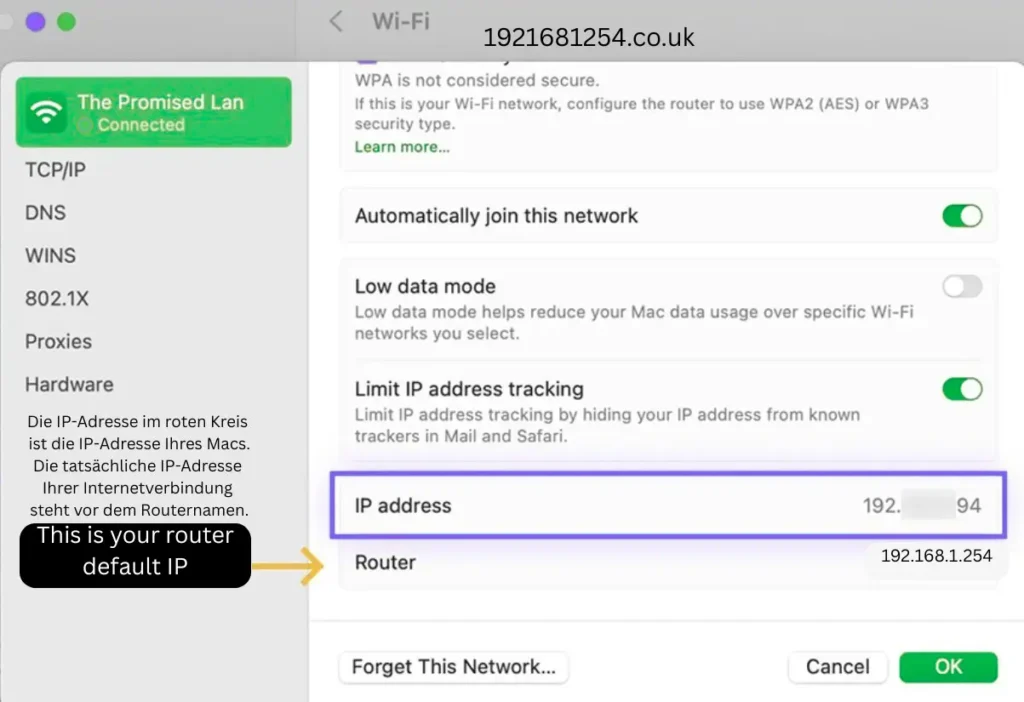
The router address shown here is your router’s IP address.
On Android
- Open Settings.
- Tap Network & Internet or Wi-Fi.
- Select your connected network.
- Open Advanced or Network Details.
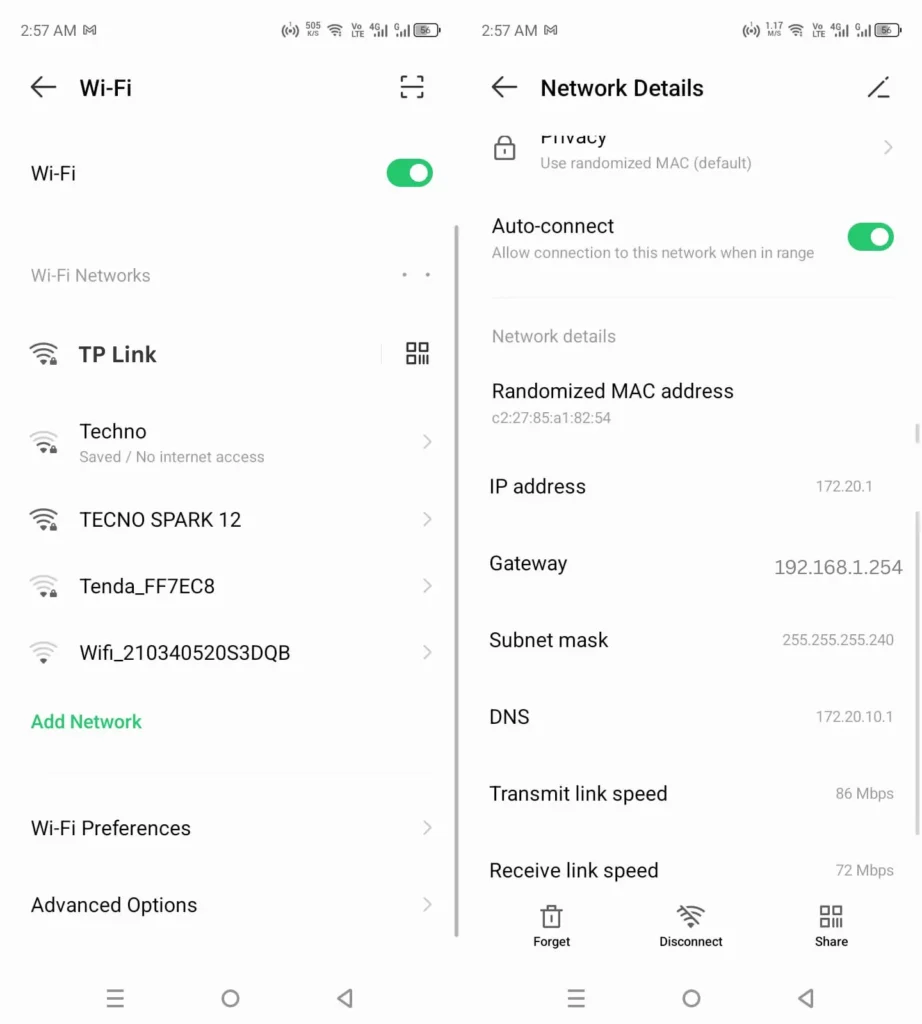
The gateway or router address displayed is the login IP.
On iPhone or iPad
- Open Settings.
- Tap Wi-Fi.
- Tap the ⓘ icon next to your connected network.
- Scroll to Router.
This number is the address you’ll use to access your router settings.
On Linux
Open Terminal and run “ip route” and click enter.
Look for the line beginning with default via. The IP address that follows is your router default gateway.
Router Settings Explained: What You Can Change After Logging In
After successfully signing in to 192.168.1.254, you will have access to your router administration panel. The exact layout varies between manufacturers, but most routers include the same core settings. Understanding what each option does helps you manage your network confidently and avoid changes that could interrupt your internet connection.
Understanding the Router Dashboard
The first screen you see after logging in is often called the Dashboard, Status, Home, or Overview page. Here you will usually find information such as:
- Internet connection status
- Router model and hardware version
- Firmware version
- Wi-Fi network names (SSID)
- Connected devices
- Internet uptime
- LAN IP address
- WAN IP address
- Network activity
Before changing any settings, take a moment to familiarise yourself with the dashboard. Knowing where each section is located makes future configuration much easier.
Change Your Wi-Fi Name (SSID)
One of the first things many people do after accessing the 192.168.1.254 login is personalise their wireless network.
The Wi-Fi name, also known as the SSID (Service Set Identifier), is the name that appears when nearby devices search for wireless networks.
To change your Wi-Fi name:
- Log in to your router.
- From the left menu click on Wireless, or Wi-Fi, or Wireless Settings.
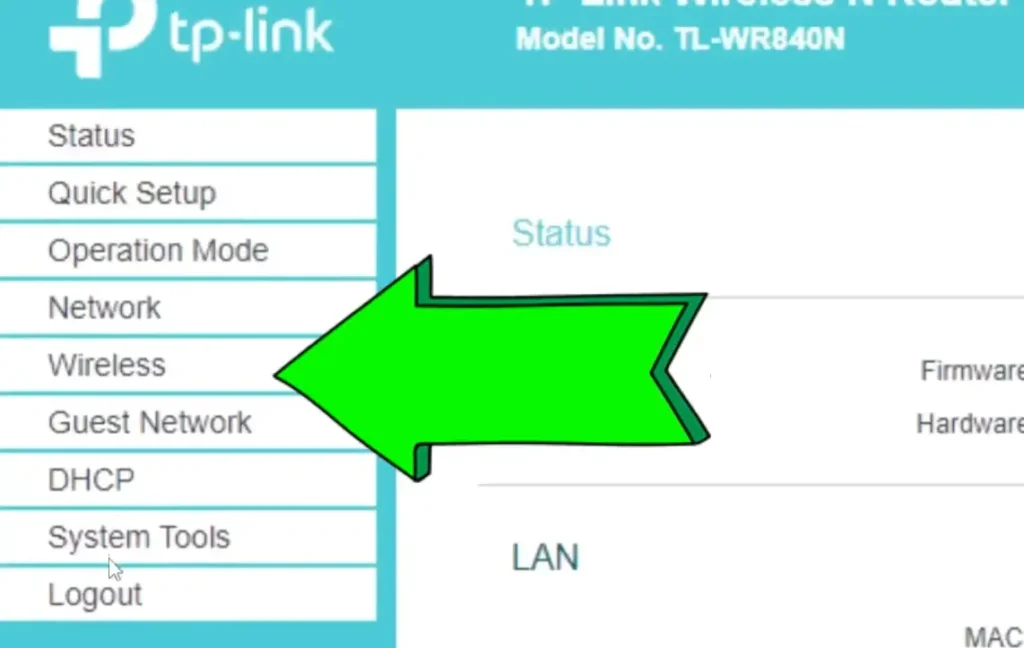
- In the wireless beasic settings, locate the SSID or Network Name field.
- Remove the old or existed name and enter your new preferred Wi-Fi name.
- Now click on save to apply the changes.
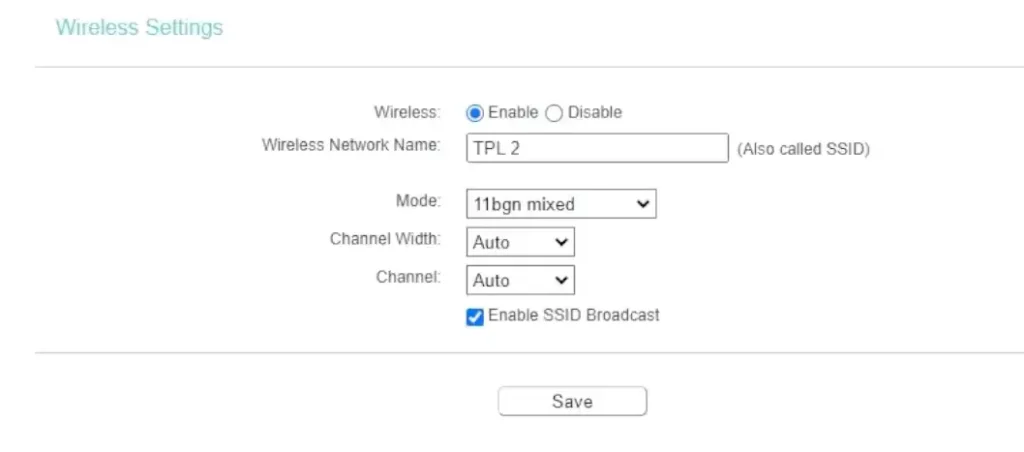
Your router may restart the wireless network for a few seconds. Once complete, reconnect your devices using the new network name.
Change Your Wi-Fi Password
Your Wi-Fi password protects your network from unauthorised access.
If you’re still using the password printed on the router or a weak password you’ve had for years, it’s worth updating it.
How to change the Wi-Fi password
- To change password, from the same window in wireless submenu, click on Wireless Security or Wi-Fi Security.
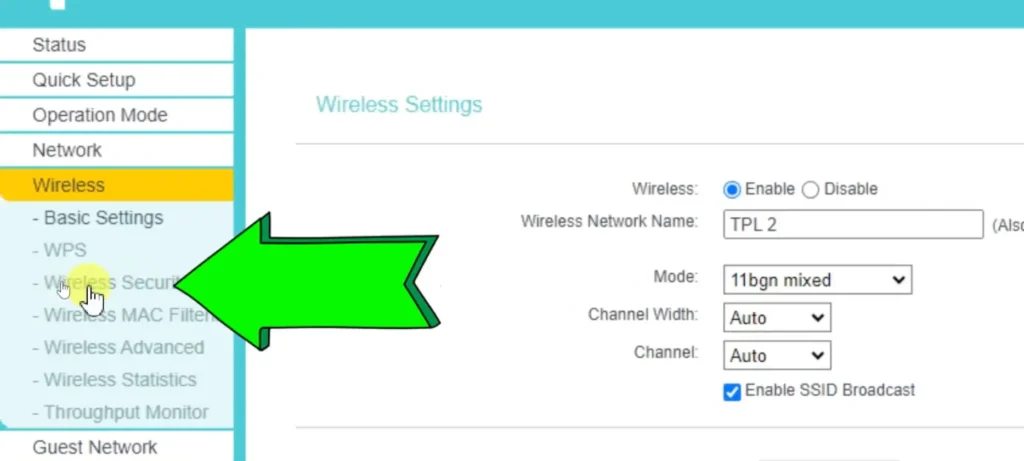
- Find the Wi-Fi Password, Wireless Password, Passphrase, or Pre-Shared Key field.
- Enter a new password.
- Scroll down and click on “Save” to apply the changes.
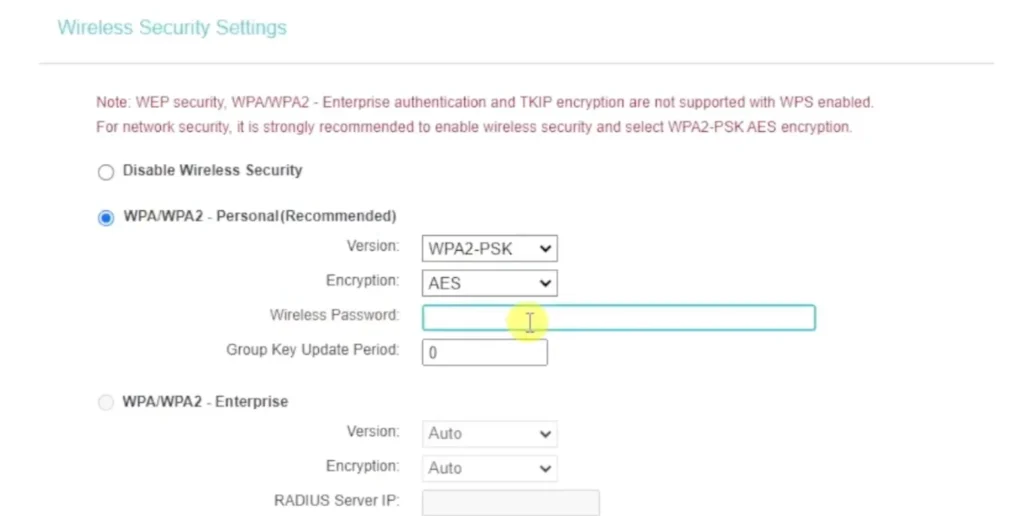
After updating the password, every wireless device will disconnect automatically. You will need to reconnect each device using the new password.
Check Connected Devices
Most router dashboards include a page showing every device currently connected to your network.
Depending on your router, it may be labelled the following:
- Connected Devices
- Device List
- Clients
- Network Map
- DHCP Clients
The list usually displays:
- Device name
- IP address
- MAC address
- Connection type (Wi-Fi or Ethernet)
- Connection speed
Review this list regularly. If you notice an unfamiliar device, it could indicate that someone has connected without permission.
Guest Wi-Fi Network
Many modern routers let you create a separate guest network.
Instead of sharing your main Wi-Fi password with visitors, they connect to an isolated wireless network.
Benefits include:
- Better privacy
- Improved security
- Separate passwords for guests
- Limited access to local devices
- Easier password management
A guest network is especially useful if friends, customers, or visitors frequently need internet access.
Wireless Security Settings
Your router security settings determine how devices authenticate before joining your network. You will see options such as:
- WPA2-Personal
- WPA3-Personal
- WPA2/WPA3 Mixed Mode
- WEP (legacy)
- Open Network
For most home users, WPA3 offers the highest level of protection where supported. If some older devices cannot connect, WPA2-Personal remains a reliable and widely compatible choice.
Avoid using WEP, as it is outdated and can be compromised relatively easily.
DHCP Settings
DHCP (Dynamic Host Configuration Protocol) automatically assigns an IP address to every device that joins your network. Without DHCP, each device would need to be configured manually. Most home users should leave DHCP enabled. Within the DHCP settings, you can often configure:
- IP address range
- Lease time
- Reserved IP addresses
- Static IP assignments
Unless you have a specific networking requirement, the default configuration is usually the best option.
DNS Settings
The Domain Name System (DNS) translates website names into IP addresses so your browser can load web pages.
Many routers use your internet provider’s DNS servers automatically, but some users prefer public DNS services for speed, privacy, or additional security features.
Popular public DNS providers include:
|
Provider |
Primary DNS |
Secondary DNS |
|---|---|---|
|
Google Public DNS |
8.8.8.8 |
8.8.4.4 |
|
Cloudflare |
1.1.1.1 |
1.0.0.1 |
|
Quad9 |
9.9.9.9 |
149.112.112.112 |
Changing DNS servers won’t increase your internet speed directly, but it can sometimes improve domain lookup times and provide additional security features depending on the provider.
Firmware Updates
Router firmware is the operating software that controls your router. Manufacturers regularly release firmware updates to:
- Fix security vulnerabilities.
- Improve stability.
- Add new features.
- Improve wireless performance.
- Resolve known bugs.
Most routers include a Firmware Update or System Update section where you can check for newer software.
Before starting an update:
- Do not switch off the router.
- Do not disconnect the power.
- Avoid interrupting the update process.
An interrupted firmware update can leave the router temporarily unusable until it is recovered.
Quality of Service (QoS)
Quality of Service, commonly called QoS, lets you prioritise important internet traffic. For example, you can prioritise:
- Video calls
- Online gaming
- Streaming services
- Work laptops
- Voice over IP (VoIP)
QoS helps reduce interruptions when multiple people are using the internet at the same time.
Expert Tip
Before making significant configuration changes, check whether your router includes a Backup & Restore option. Creating a backup of your current settings takes only a few moments and allows you to restore your previous configuration if you accidentally misconfigure the router or need to reset it later.
192.168.1.254 Login Not Working? Here’s How to Fix It
Trying to open 192.168.1.254 only to see a blank page or an error message can be frustrating. In most cases, however, the problem isn’t with the router itself. It’s usually caused by a simple issue such as using the wrong IP address, typing the address incorrectly, entering the wrong login details, or connecting to a different network.
192.168.1.254 Doesn’t Open
If nothing happens after entering http://192.168.1.254, work through these checks one by one.
1. Make Sure You’re Connected to the Router
The router login page only works when your device is connected to that router
If you are using mobile data, another Wi-Fi network, or a VPN, the login page won’t be accessible.
2. Enter the Address Correctly
A surprising number of login problems are caused by typing mistakes.
Common mistakes include:
- 192.168.l.254
- 192.168 l254
- 1921681254 (typed into the address bar without dots)
- http//192.168.1.254
- https://192.168.1.254
- www.192.168.1.254
- 192.168.1254
- 192.168.12.54
Remember that 1921681254 is a popular search term, but it is not the format your browser needs. Always enter the complete IP address with dots into the browser address bar.
3. Use the Browser’s Address Bar
One of the most common mistakes is searching Google for 192.168.1.254, which is incorrect. The correct way is to type the address directly into the browser’s address bar. Otherwise, you will simply see search results instead of your router login page.
4. Check Whether Your Router Uses a Different IP Address
Not every router uses 192.168.1.254. Many models use:
- 192.168.1.1
- 192.168.0.1
- 10.0.0.1
- 192.168.100.1
- 192.168.8.1
- 192.168.2.1
If 192.168.1.254 doesn’t work, find your router’s default gateway using the steps explained earlier in this guide.
Router Login Page Loads but Won’t Accept Your Password
Sometimes the login screen appears correctly, but your username or password is rejected. This usually happens because:
- The administrator password has been changed.
- Incorrect login details are being entered.
- Auto-fill has inserted old credentials.
- Upper and lower characters don’t match.
- Someone else has previously configured the router.
Before trying again:
- Carefully re-enter the username.
- Type the password manually instead of relying on auto-fill.
- Check the router label for the original credentials.
- Confirm whether your ISP provided customised login details.
Avoid repeatedly guessing passwords, as some routers temporarily block additional login attempts after several failed tries.
Browser Shows “This Site Can’t Be Reached”
This message usually indicates that your browser can’t communicate with the router. Possible causes include:
- The router is switched off.
- Wi-Fi has disconnected.
- Ethernet cable is loose.
- Wrong IP address.
- Browser issue.
- Local network problem.
Browser Displays a Security Warning
Some browsers display messages such as:
- Your connection is not private
- Potential security risk ahead
- Certificate warning
This doesn’t necessarily mean your router is unsafe.
Many routers use self-signed security certificates because they’re designed for local network access rather than public websites.
As long as you’re connected to your own router and you’ve entered the correct IP address, these warnings are generally expected.
Forgot the Administrator Password?
If you’ve forgotten the administrator password, there isn’t a recovery option on most routers. Instead, you have two choices:
- Locate the original login details printed on the router.
- Reset the router to its factory settings.
Only reset the router if you’re certain you no longer know the administrator password.
Remember that resetting removes your customised settings, including:
- Wi-Fi name
- Wi-Fi password
- Port forwarding rules
- Guest network
- DNS settings
- Static IP assignments
- Parental controls
- Device reservations
You’ll need to configure the router again afterwards.
How to Reset a Router Using the Reset Button
A factory reset restores the router to its original configuration.
Follow these steps carefully:
- Leave the router switched on.
- Locate the small Reset button.
- Press and hold it for around 10–15 seconds using a paperclip or SIM tool.
- Release the button.
- Wait several minutes while the router restarts.
Once the reset is complete, you’ll be able to log in using the default administrator credentials supplied by the manufacturer or your internet provider.
Important: A factory reset should always be your last option. In most cases, login issues can be resolved without erasing your router’s settings.
Common 192.168.1.254 Login Problems at a Glance
|
Problem |
Most Likely Cause |
Solution |
|---|---|---|
|
Login page won’t open |
Wrong IP address |
Check your Default Gateway |
|
Page keeps loading |
Network connection issue |
Restart router and reconnect |
|
Username or password rejected |
Incorrect credentials |
Check router label or reset if necessary |
|
Browser security warning |
Self-signed router certificate |
Proceed only if you’re on your own network |
|
Blank page |
Browser cache or browser issue |
Clear cache or try another browser |
|
Router not responding |
Router offline or hardware issue |
Restart the router and check cables |
|
Can’t find 192.168.1.254 |
Different default gateway |
Find your router’s IP address using your device settings |
Router Brands That Use 192.168.1.254
Although 192.168.1.254 is a standard private IP address, not every router manufacturer uses it as the default gateway. Some brands choose 192.168.1.1 or 192.168.0.1 instead, while others allow the address to be changed during the initial setup.
If you’re trying to access your router through the 192.168.1.254 login, the following manufacturers are among the most common users of this address.
TP-Link Routers
Several TP-Link routers and broadband gateways use 192.168.1.254 as the default management address. After signing in, you can manage wireless settings, update firmware, configure DHCP, adjust security options, and monitor connected devices.
If 192.168.1.254 doesn’t work on your TP-Link router, check whether your model has been configured to use another gateway such as 192.168.0.1 or 192.168.1.1.
Plusnet Routers
Some Plusnet broadband hubs use 192.168.1.254 as their default login address. From the admin dashboard, customers can change their Wi-Fi password, update wireless settings, create guest networks, and review broadband connection details.
The administrator password is often printed on the router label unless it has been changed previously.
BT Business Hub
Selected BT Business Hub models also use 192.168.1.254 to provide access to their web management interface. Business users can configure firewall rules, wireless security, broadband settings, and connected devices through the same administration panel.
The exact dashboard may differ depending on the firmware version installed.
2Wire and Pace Routers
Older 2Wire and Pace broadband routers frequently use 192.168.1.254 as their default gateway. While many of these devices are no longer widely supplied, they remain in use on existing home and small business networks.
The available settings typically include wireless configuration, broadband diagnostics, parental controls, and local network management.
Billion, Motorola and Thomson
Several legacy models from Billion, Motorola and Thomson also use 192.168.1.254 as the default router login address. Although the appearance of the administration interface varies, the core features remain similar, allowing users to manage wireless networks, update security settings, and configure local network options.
FAQs
Final Thoughts
For many routers, 192.168.1.254 is the quickest way to access the administration panel and manage your home or office network.
From changing your Wi-Fi password and updating your network name to reviewing connected devices and improving wireless security, the router dashboard provides the tools needed to keep your network organised and secure.
If the login page doesn’t open straight away, don’t panic. In most cases, checking your connection, confirming the correct gateway address, or reviewing your login details is enough to solve the problem without resetting the router.