
TP-Link Login – Access Your TP-Link Router Settings
Whether you’re setting up a new router, changing your Wi-Fi password or troubleshooting your internet connection, you’ll need to access the TP-Link login page. Once signed in, you can manage all your router and Wi-Fi settings from the your administration panel.
This is a thorugh article which focuses specifically on TP-Link devices, including the different login methods, web interface, mobile app and the most common problems users encounter.
TP-Link Router Login
Click on the button termed “admin login” for quick access to your panel area.
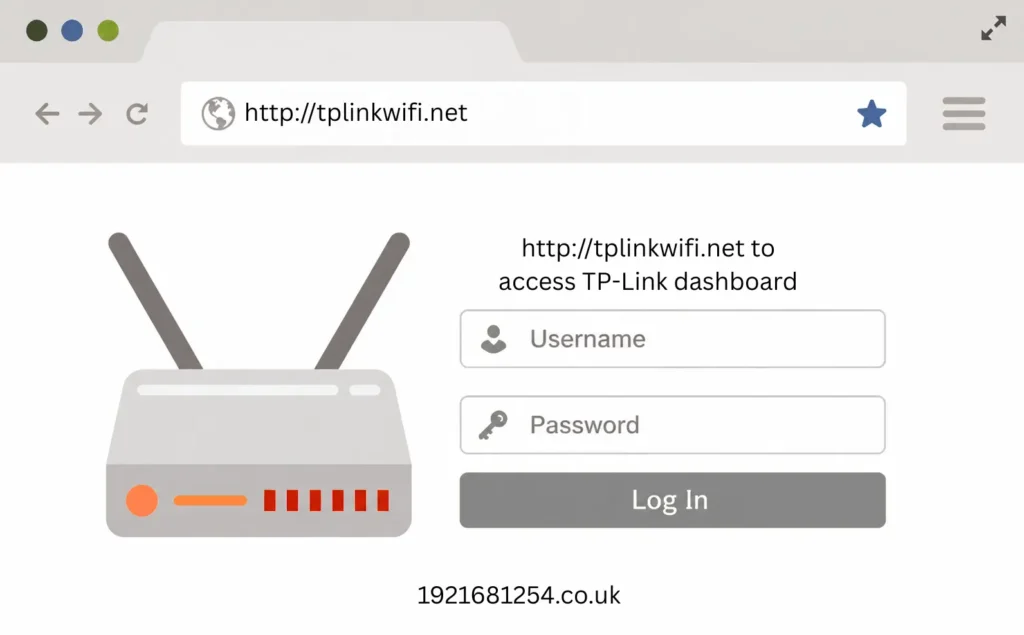
About TP-Link Login
|
Login Information |
Details |
|---|---|
|
Brand |
TP-Link |
|
Login Website |
tplinkwifi.net |
|
Alternative Login |
Router’s local IP address |
|
Internet Required |
No |
|
Works On |
Windows, macOS, Linux, Android, iPhone & iPad |
|
Login Method |
Web browser or TP-Link Tether app |
|
Main Features |
Wi-Fi settings, Security, Firmware, Guest Network, Parental Controls, QoS |
How to Log In to a TP-Link Router
Accessing your TP-Link router only takes a few minutes.
Connect to TP-Link Router
Connect your device to the TP-Link router using either the router’s internet via Wi-Fi or Ethernet cable
Go to the Web Browser
Open the web browser that you have on your device.
Provide the Login Address
Most modern TP-Link routers use http://tplinkwifi.net in the browser URL bar
If that does not work, your router may instead use its local IP address, which varies depending on the model or previous network configuration.
Log In
Enter your admin username and password.
On newer TP-Link routers, you’ll often create your own administrator password during the initial setup instead of using a shared default password.
Which TP-Link Login Method Should You Use?
One reason users struggle with TP-Link login is that different router models support different access methods.
|
Login Method |
Best For |
|---|---|
|
tplinkwifi.net |
Most modern TP-Link home routers |
|
Local IP Address |
Older models or customised networks |
|
TP-Link Tether App |
Managing compatible routers from a mobile device |
If one method doesn’t work, try another. The available option depends on your router model and how it has been configured.
Understanding the TP-Link Product Range
Not every TP-Link device uses the same interface or includes the same features. Here’s how the main product families differ.
|
Product Range |
Typical Use |
|---|---|
|
Archer |
Home Wi-Fi routers |
|
Deco |
Whole-home mesh Wi-Fi systems |
|
Omada |
Business networking and managed access points |
|
Portable Travel Routers |
Mobile networking while travelling |
|
4G & 5G Routers |
Internet access using a SIM card |
|
Range Extenders |
Expanding wireless coverage |
Although the login process is similar, each range includes different menus and management tools.
Using the TP-Link Tether App
Many TP-Link routers can also be managed through the TP-Link Tether app.
Download it from the App Store if you’re an iOS user; Android users can download it from the Play Store.
The app allows you to:
- Complete the initial setup
- Change Wi-Fi settings
- Restart the router
- Pause internet access
- Manage connected devices
- Update firmware
- Receive notifications
- Configure guest networks
For many users, the app provides a quicker way to manage their network than logging in through a web browser.
Can’t open tplinkwifi.net?
Sometimes tplinkwifi.net doesn’t load even though your router is working normally. The reasons include:
- You’re not connected to the TP-Link router.
- The router uses a different login address.
- The browser has cached an old session.
- A VPN is interfering with the connection.
- The router is still starting up.
- The local network has been reconfigured.
If the web address doesn’t open, try accessing the router using its assigned local IP address instead.
Default Administrator Credentials
Older TP-Link routers often shipped with default administrator credentials.
However, newer models require users to create their own administrator password during the initial setup process.
If you’re unsure which credentials to use:
- Check the label attached to the TP-Link router.
- Review the installation guide.
- Look for any password created during the first-time setup.
TP-Link Tether App vs Web Login
TP-Link gives users two different ways to manage compatible routers.
|
Feature |
Web Interface |
TP-Link Tether App |
|---|---|---|
|
Initial Setup |
✔ |
✔ |
|
Change Wi-Fi Name |
✔ |
✔ |
|
Change Wi-Fi Password |
✔ |
✔ |
|
View Connected Devices |
✔ |
✔ |
|
Firmware Updates |
✔ |
✔ |
|
Advanced Network Settings |
✔ |
Limited on some models |
|
Port Forwarding |
✔ |
Available on supported devices |
|
Full Configuration |
✔ |
Depends on router model |
The web interface offers the most complete set of configuration options, while the Tether app is designed for convenient day-to-day management from a smartphone.
Archer, Deco and Omada – What’s the Difference?
Although they’re all made by TP-Link, these product families are designed for different environments.
|
Series |
Designed For |
Management Style |
|---|---|---|
|
Archer |
Home Wi-Fi routers |
Web interface and Tether app |
|
Deco |
Whole-home mesh Wi-Fi |
Primarily managed through the Deco app |
|
Omada |
Business networks |
Omada Controller or web interface |
If you’re following login instructions, make sure they’re intended for your specific product range. The menus and available features differ between these systems.
FAQs
Final Thoughts
Logging in to your TP-Link router gives you complete control over your home network. If tplinkwifi.net doesn’t open, don’t assume your router is faulty. In many cases, checking your network connection, using the correct login method, or trying another browser is enough to restore access. Once you’re signed in, keeping your firmware updated and reviewing your security settings regularly will help ensure your TP-Link router continues to deliver a fast, stable and secure internet connection.